- Log into your course site
- Click on [Classlist]
- Click the box to the left of the individual's name
- Click the [Change enrollments for selected users] icon (looks like a blue rectangle, and is located above the "first name" column heading)
- On the next screen, use the dropdown menu to select the desired Role
- Click [Save]
Showing posts with label Role Switch. Show all posts
Showing posts with label Role Switch. Show all posts
Changing User Role from the Classlist
To change someone's role in your D2L course site:

 PDF
PDF

Change enrollment (role)
- Click on[Classlist]
- Check the box next to the person's name
- Click the change enrollment icon at the bottom of the screen.
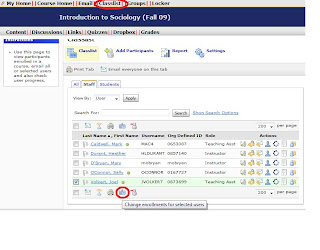
- A new screen will open with the student's/instructor's name
- Select the new role
- Click save
http://screencast.com/t/NThhODRlZ
- Check the box next to the person's name
- Click the change enrollment icon at the bottom of the screen.

- A new screen will open with the student's/instructor's name
- Select the new role
- Click save
http://screencast.com/t/NThhODRlZ
D2L News -- Course Home Page
If you are concerned with the amount of space taken up by the "D2L News" and the "Role Switch" in the left-hand column of the Course Home page -- we have good news!
First, the students do NOT see the same width column on the left, because they do not see the "Role Switch" tool.
Second, instructors can make the column narrow by simply closing or minimizing the "Role Switch" box. Just click on the double-arrows icon on the right side of the title bar! See below for a screen shot.

First, the students do NOT see the same width column on the left, because they do not see the "Role Switch" tool.
Second, instructors can make the column narrow by simply closing or minimizing the "Role Switch" box. Just click on the double-arrows icon on the right side of the title bar! See below for a screen shot.
"Student View"
Question:
Answer:
A special note about Grades:
Using the Role Switch, the instructor will be unable to see anything in Grades, since there is neither grade data nor an actual user associated with this view.
To see a *particular* student's view of their own Grades, click on the name of the student in the Enter Grades area, then click on Preview.

How can I see what the students see in D2L?
When I use the Role Switch or "preview" function in the Dropbox and Quizzes, I don't see the submissions when I switch back to my role as an Instructor!
Answer:
Although the Role Switch and the "preview" links in various tools are both designed to show an instructor what an "average" student SEES ... it doesn't fully mimic what a student DOES.
Neither Role Switch nor "preview" is actually associated with a real USER in the D2L database -- so operations you perform in these "student view" roles do not have the same effect as when a real student performs them.
In other words, since there's no real user attached to the Role Switch or preview, there is no place for the instructor to *see* a quiz attempt or a file submitted to a Dropbox.
(The Role Switch student will also not see restricted Discussions!)
A special note about Grades:
Using the Role Switch, the instructor will be unable to see anything in Grades, since there is neither grade data nor an actual user associated with this view.
To see a *particular* student's view of their own Grades, click on the name of the student in the Enter Grades area, then click on Preview.

D2L 9.2.1 SP3 – September 2011
Subscribe to:
Posts (Atom)
