We've MOVED!

The University of Wisconsin - Milwaukee has moved to D2L version 10.

Updated help files are located at uwmltc.org

.
Showing posts with label tools. Show all posts

D2L Navigation Bars (navbars) Made Easy


D2L Navigation Bars (navbars) Made Easy

After you have your navbar set with all the links you want, it can be frustrating to start a new semester from scratch with the "course default" navbar.

GOOD NEWS! You don't need to!


If you "Copy Components" from an older course each semester (here's how), be sure to include "Navigation Bars."


Then, all you need to do is set the *copied* navigation bar as "active" for the new course site.

Here's how:

1. From the Course Home page, click [Edit Course]

2. Click [Navigation]

3. Under the header "Navbars" you should see a list. Choose the navbar you just copied and click the [page with magnifying glass] icon to preview the layout and links to be sure they are what you want. Then close the preview.

4. Under "Active Navbar," click [Change]
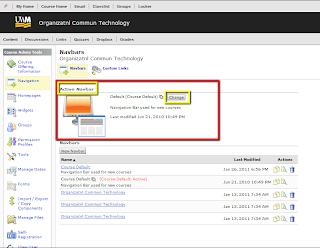
5. In the drop-down menu, select [the name of the navbar you wish to make "active"]

6. Click [Apply]

7. In the "Confirmation" pop-up window, click [Set Active]


So ... bottom line ... you won't need to keep adding or removing the same links to your navbar each semester. You just need to copy a navbar that already has the links and layout you like, then make that navbar "active" in the new D2L course site.

Adding or deleting links on the course navigation bars (navbars)

How can an instructor add or remove tool links in the course navigation bar?

1.  Click [Edit Course]
2.  Click [Navigation]

IF YOU SEE BOTH the "Course Default" PLUS another navbar title (blue-link) under the heading "Navbars," click the blue link and skip to steps 7-15 below.

IF YOU SEE ONLY THE "Course Default" navigation bar under the heading "Navbars," do the following:

3.     Click the [Copy Course Default] button in the navbar list, to the right (icon looks like 2 pieces of paper)
4.     In the "Confirmation" pop-up window, click [Yes]
5.     Find the "Copy of Course Default" navbar in the list and click on the name to edit
6.     On the Properties tab, rename your navbar if you wish, to make it easier to select later

----
7.     Click the [Links] tab

8a.   Find the link you wish to remove from the navbar and click the "down" arrow beside it, then click [Remove from navbar] and confirm in the popup window

-OR-

8b.   Find the area of the navbar where you wish to add a link and click [Add Links] and follow prompts.  (NOTE: "Add Links" only works for linking to places within the D2L course site.  To add an EXTERNAL link, please see  http://d2ltipsandtricks.blogspot.com/2010/08/editing-nav-bar-adding-external-link.html)

9.     Repeat for other links as desired
----

10.   Click [Navbars] at the top of the page to return to the Navbar list
11.   Under "Active Navbar," click [Change]
12.   In the drop-down menu, select [the name of your new navbar]
13.   Click [Apply]
14.   In the "Confirmation" pop-up window, click [Set Active]